
Get started
Create a Screenity account, sign in, find your video library and start your first recording or upload from the dashboard.
Sign in to the Screenity web app on a desktop browser to record, upload and edit videos.
Sign in
- Open Screenity and choose Sign Up to create an account, or Login to return to one.
- Choose Continue with Google or enter your email and follow the prompts. If you use an email link, open the link sent to your email.
Use the original sign-in method if you cannot access an existing account.
Start a video
From your dashboard, choose how to begin. The wording varies slightly between an empty library and one with videos.
- Record video or Record your screen or camera opens the recording studio. See Record a video.
- Upload a video or Import from your computer adds a file you already have. See Import and upload videos.
- Blank video, from the Create menu, opens an empty project in the editor so you can add media there.
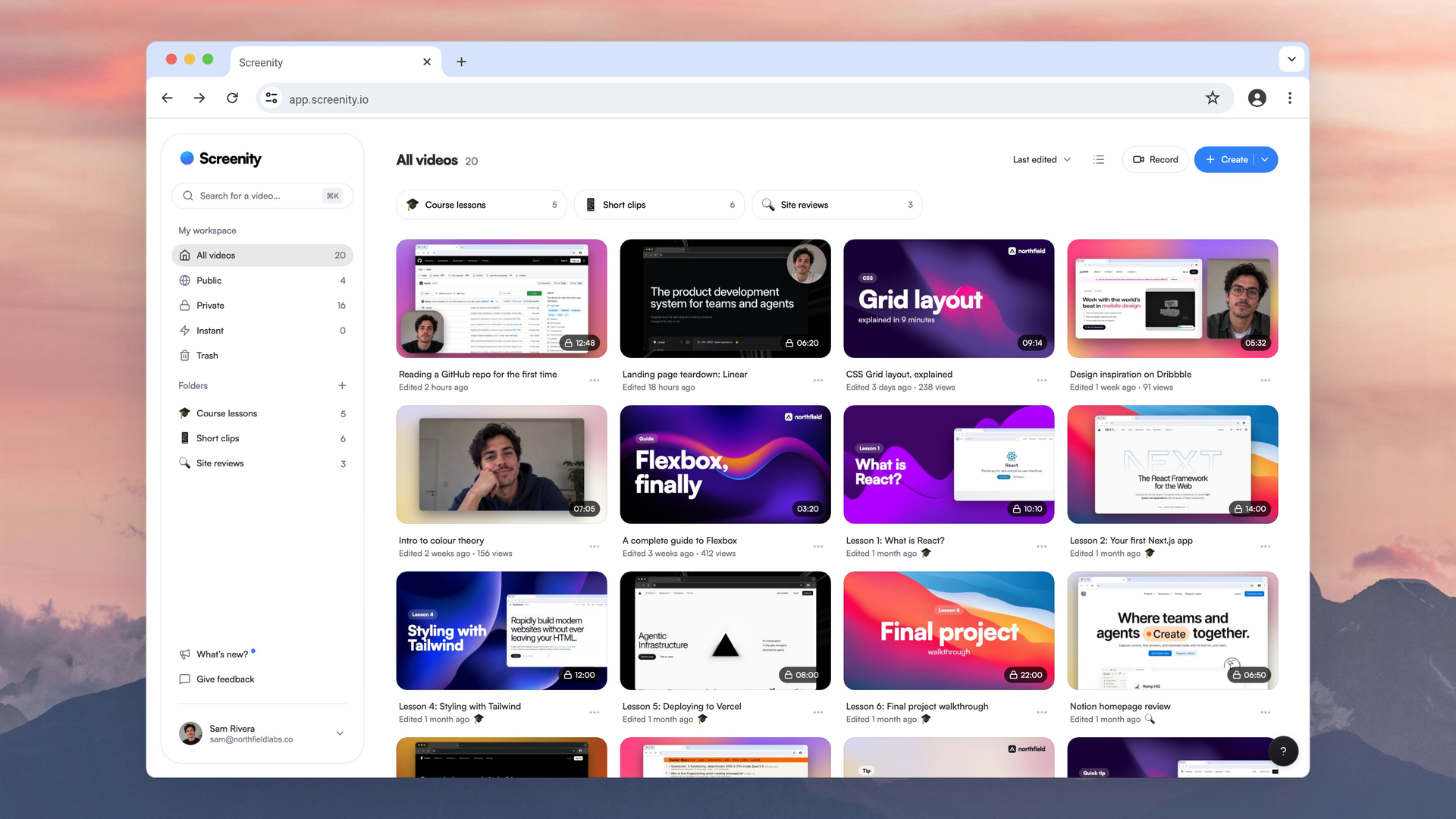
Find your videos
Your dashboard lists your videos. Open one to edit it. Instant videos open in the viewer. See Manage videos and folders.
Use the Chrome extension
The extension adds recording tools such as annotations and click highlights. Install the extension, or upload an extension recording to work on it here.
Last updated October 29, 2026