
Make your first screen recording
Record a screen, part of a browser tab, or your camera with the Screenity extension. You can get started without an account.
Record your screen, a tab area or your camera with the Screenity extension. You don't need an account to get started.
Start a recording
-
Install the Screenity extension, then select its icon in your browser toolbar.
-
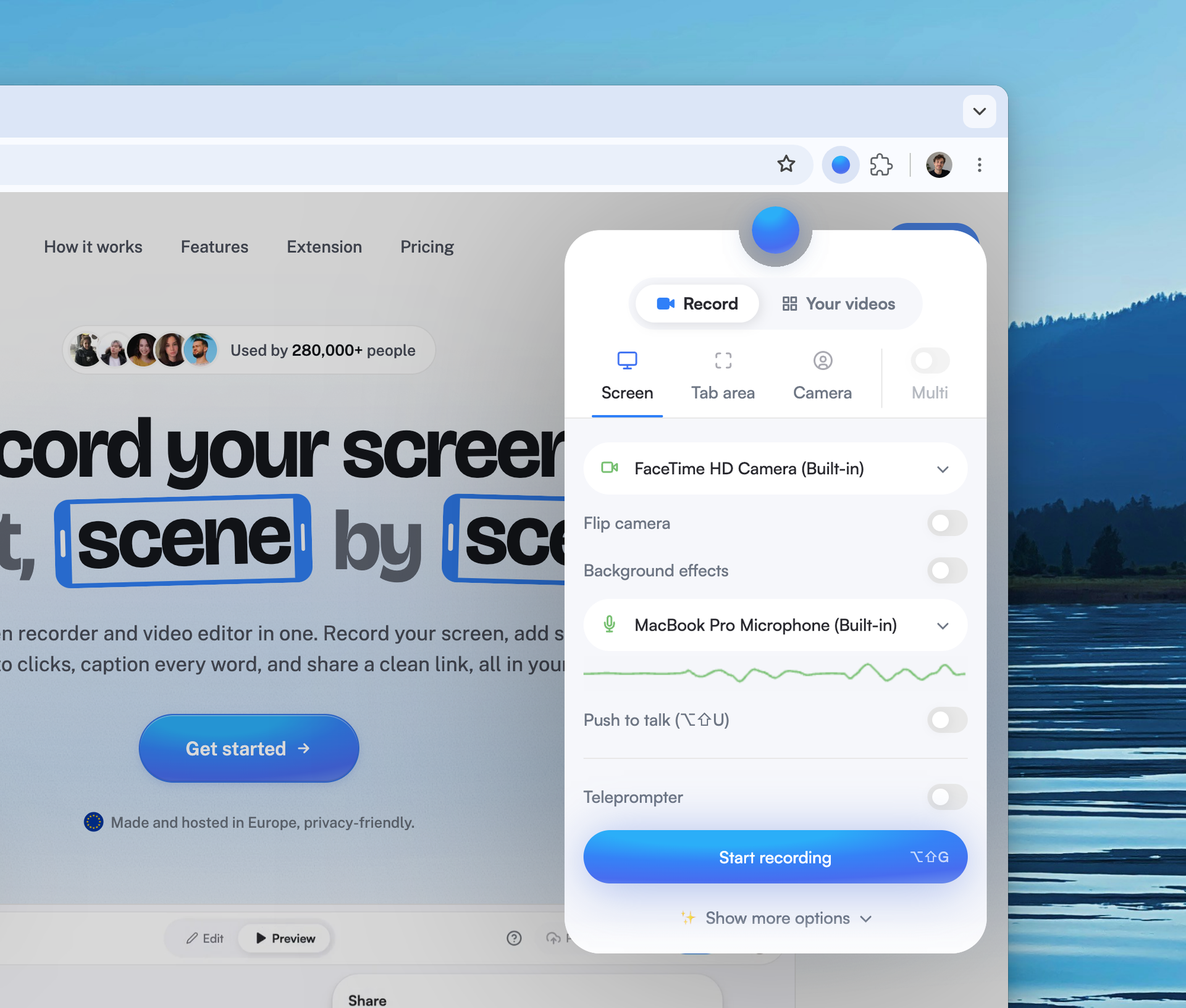
In Record, choose Screen, Tab area, or Camera. Camera mode requires a camera, but the other modes can include one if you choose.
-
Select a camera and microphone from their dropdowns if you want to use them. Allow access when prompted. You can turn either off if you don't need it.
-
Select Start recording. If your browser asks what to share, choose the screen, window or tab you want and confirm sharing.
To start with your last settings without opening the popup, press Alt + Shift + G on Windows/Linux or ⌥⇧G on Mac. You can change this shortcut in Chrome. See keyboard shortcuts.
Screenity needs permission to use your camera or microphone when you choose them. If a website blocks them, Screenity shows "Camera and microphone not allowed" and you can still record without the camera. On pages where tab recording is not possible, Tab area is grayed out with the tooltip "Tab recording is disabled on this page", and Screenity falls back to Screen. Your operating system may also require screen recording permission. Setting a custom area needs Chrome 110 or later.
If you're recording without signing in, or using instant mode, you can turn on Background effects in the popup and choose Blur or a preset background. If you're signed in and instant mode is off, you can change your camera background in the editor after recording.
If you're signed in and instant mode is off, the camera preview may hide or move to a floating window while you record. This is normal. Your camera is recorded separately so you can reposition it later. When you share your entire screen, the floating preview may close to keep it out of the screen recording. If your camera is missing from the finished video, check the selected camera and its permissions. See recording troubleshooting.
Finish and save
-
When you're finished, select the circle with a square inside (Finish recording) on the recording toolbar. If the toolbar is hidden, select the Screenity icon in your browser toolbar instead. See control a recording for every toolbar icon.
-
Review, edit and download the recording from the player. If you're recording without an account, download the video to keep a copy. If you're signed in, where the recording opens and how you can edit it depends on the recording mode.
Last updated October 29, 2026