
Recover a missing screen recording
Try to restore a recent extension recording from data on your device if its player tab has closed or you can’t find it. Recovery isn’t guaranteed.
If you closed the player tab or can't find your last extension recording, try restoring it from the recording data still on your device. Recovery is not guaranteed.
Warning:Try recovery before starting another recording, because a new recording can replace the locally retained data.
Restore your last recording
-
Open the Screenity extension popup and open the three-dot menu in the top right. The icon has no text label.
-
Select Restore last recording. If it is available, Screenity opens the recording in a new player tab.
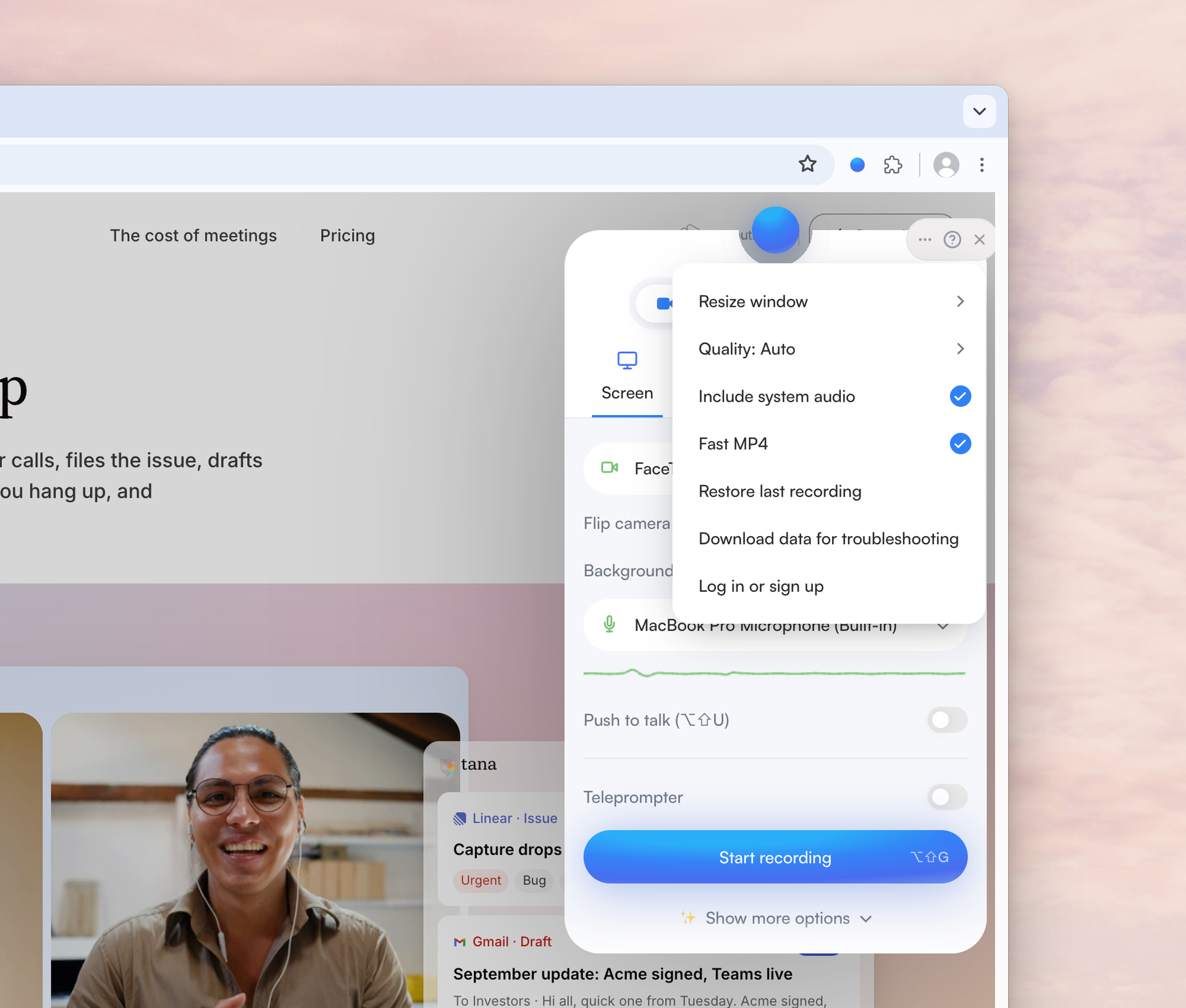
-
Review the video and download it to keep a copy.
Restore last recording appears when you are not signed in. If the option is grayed out, Screenity can't find recording data on your device that is not already open in a player tab. Check for downloaded copies instead. Closing the tab being recorded can stop the recording. Try restoring what was retained, but the result may be incomplete.
If the player cannot process the video
If the player is stuck loading, select Having issues?. In the dialog that opens, select Restore last recording. In the player, Advanced → Download raw video file can save the original recording data, including in Recovery mode. The raw file is unedited, may be large and may not play on every device.
Check connected recordings
If you are signed in to an account with an active subscription, the three-dot menu shows Recover last recording instead. It is available only when a connected recording was interrupted and some of its data is still on your device. Also check your Screenity account for the video, because recovering data on your device does not guarantee that the recording was uploaded.
Last updated October 29, 2026