
Record a video
Record your screen, camera or microphone in the Screenity web app, and learn how to capture several takes or replace one.
Record your screen, camera or microphone from the web app on a desktop browser.
- In the dashboard, select Record video. The recording studio opens.
- Turn on the screen, camera or microphone you need and choose a device where applicable. Allow browser and operating-system permissions when prompted. For screen capture, select the tab, window or screen in the browser's sharing prompt.
- Select the red record button. While you record, the Pause button appears when your browser supports pausing, and it changes to Resume while paused.
- Select the stop button, in the same place as the record button, when you finish. Wait while the take is saved and prepared before leaving.
While recording in the studio, you can press Alt + Shift + M on Windows/Linux or ⌥⇧M on Mac to pause or resume, Space to stop, or Esc to discard the take (Screenity asks first). These are web app shortcuts and are separate from the extension's shortcuts.
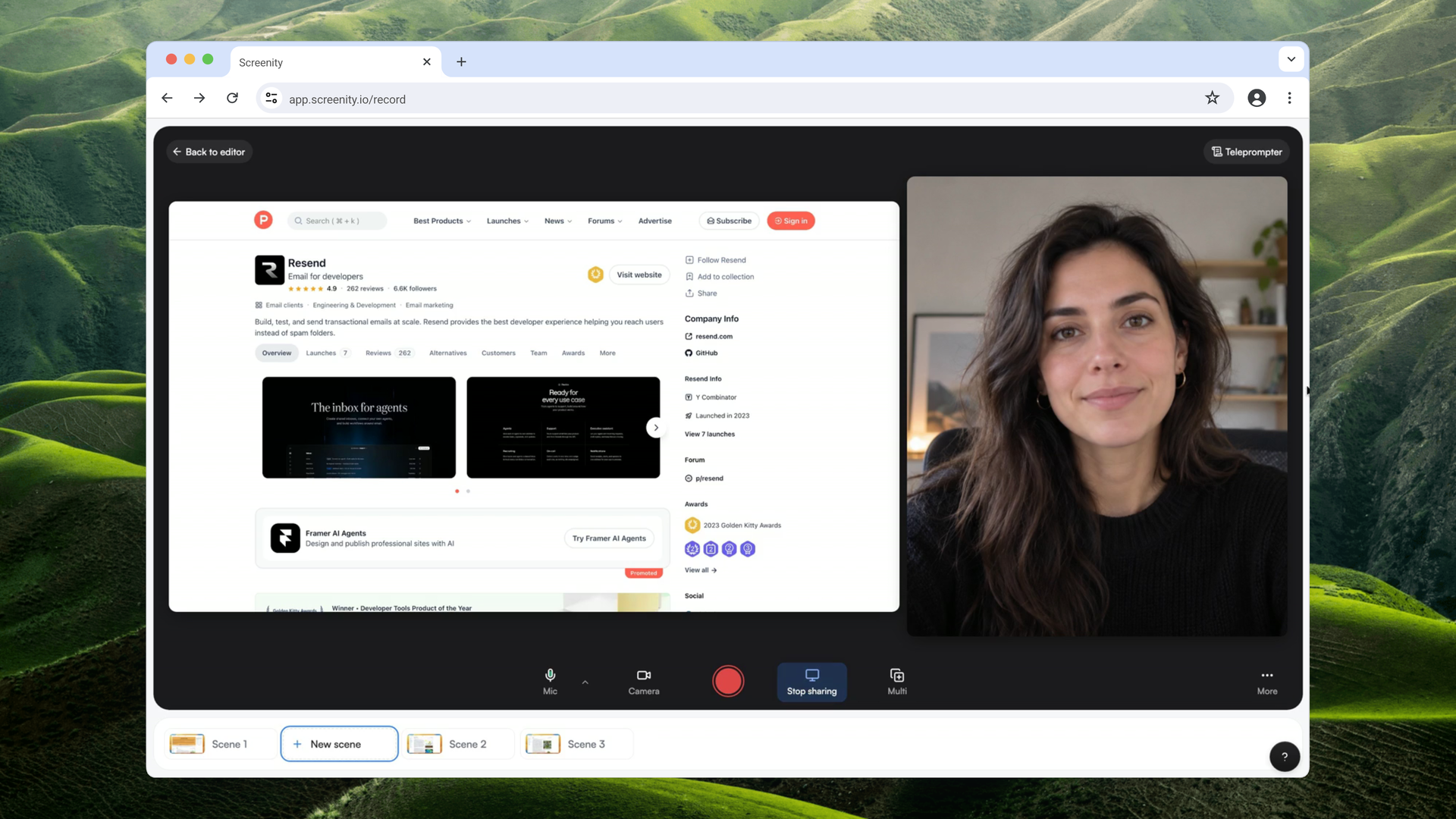
A completed take becomes a scene in the project. A recording started from the dashboard appears in the library when media has been saved.
Record several takes
Turn on Multi before starting if you want to record several takes back to back. After each stop, wait for the take to save, then start the next one. Each take becomes a scene. Select Done when you have finished to return to the editor. The script stays available between takes if you are using the teleprompter.
Record a new scene or replace a take
When recording in an existing project, use the row of scenes in the studio to choose where the next take goes. Select New scene to add a take, or select an existing scene to record over it while keeping its layout. Drag scenes to change their order or move where the new scene will appear. In Multi mode, you can also delete a take you just recorded from this row.
Before replacing an existing recording, Screenity asks for confirmation. The existing media is replaced and its zooms, trims, cuts and playback speed are reset. The scene's layout stays in place, and for an audio-only replacement, text and images remain too. Choose New scene if you want to keep the original recording.
Warning:Restarting or canceling discards the current take. Follow the confirmation prompt. Previously saved takes in a Multi session remain in the project.
Last updated October 29, 2026