
Share a video
Choose who can access a video, copy its share link, pick a share-page thumbnail and send an email preview of your video.
Use Share to control access to a video and send it to others.
For an editable video, you can preview the viewer page from the editor before sharing.
- Open the video and select Share.
- Choose an available access setting, such as Private, Anyone with the link, Anyone with the password, or Embed only.
- Copy the share link, or use the available Email or Embed options described below. For Embed only, select Get embed code instead.
- Test the share link or embedded video in a separate browser session to check what viewers can access.
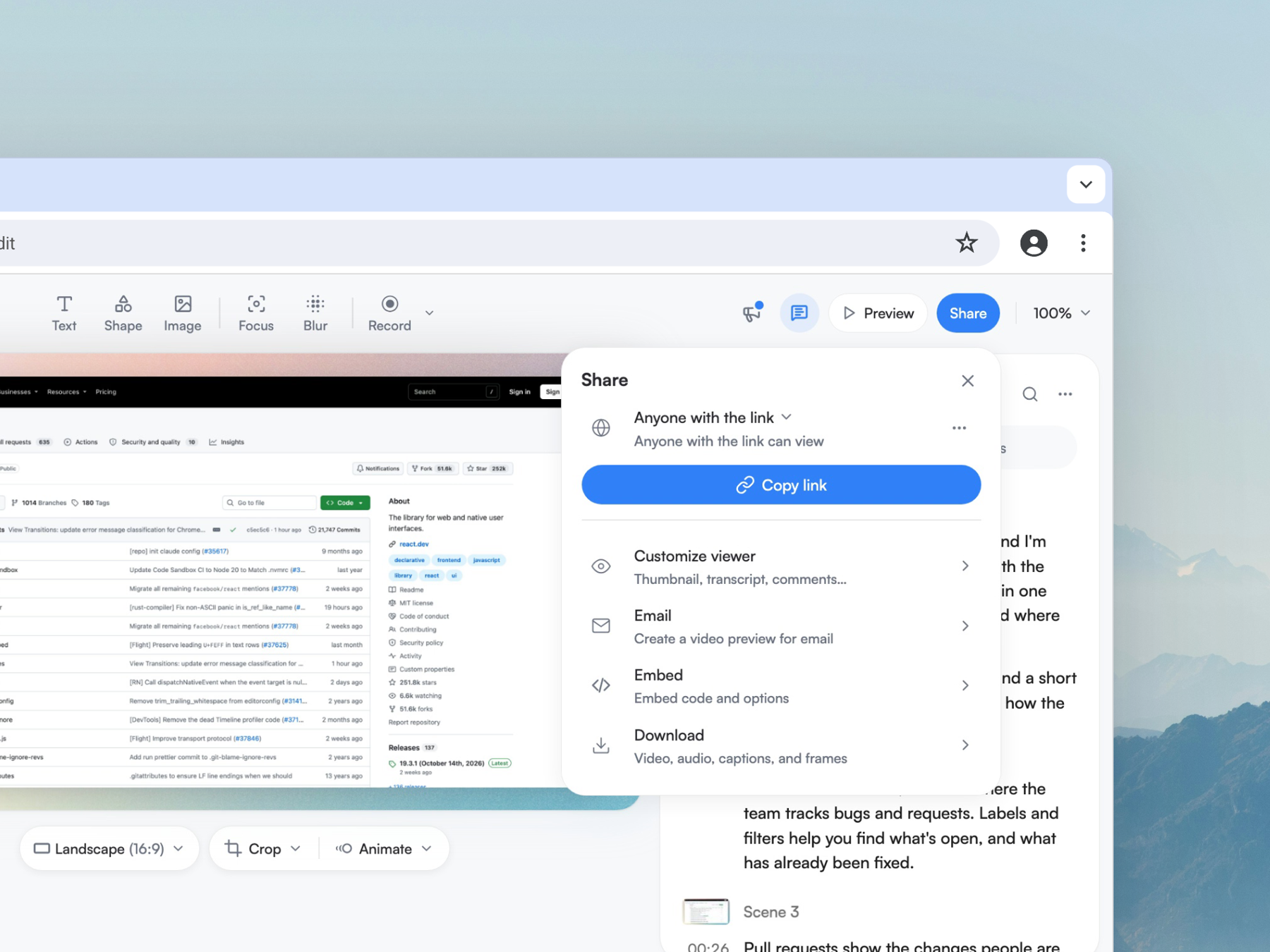
A private video is not available to anyone with a link. Access and sharing options depend on the video and account.
Viewers can watch an accessible share page, but they do not have a download button. If someone needs a file, download the video as its owner and send the file separately.
Choose the share-page thumbnail and preview
For a video shared with anyone who has the link or password, open Share → Customize viewer → Thumbnail. Choose Frame to use a moment from the video, or Upload to use an image instead. The upload panel recommends a 1280 × 720 image. PNG, JPG, WebP and GIF images up to 10 MB are accepted. If you switch back to Frame, Screenity uses a frame from the video again.
When Animated preview is on, the share page loops a short preview until someone starts playback. Use Start time to choose where the thumbnail and preview begin. The Loop starts at control can set a different point for the animated loop. Choose Same as thumbnail to link them again. Turn Animated preview off to use a still thumbnail. These choices change the share page, not the video or its export. Review the preview after changing them. Frame selection may be unavailable for instant videos, very short projects or browsers that cannot render a preview. Screenity then uses an automatic thumbnail.
Share by email
In Share, select Email to create a video preview for an email. Choose Animated or Static, adjust the preview's start time, and turn Show play button on or off. For an animated preview, choose its length. For a static preview, you can use the custom thumbnail or switch to a frame from the video. Select Copy content to copy the preview for an email, or Copy code to copy its HTML. The selected frame and start time are shared with the share-page thumbnail, but the email has its own Animated/Static, length and play-button controls.
Password-protected videos cannot include an image preview in the email. The email carries the link only.
Embed a video on a website
Add a Screenity player to another page, choose its playback and appearance options, and copy the embed code. See how to embed a video on a website.
Last updated October 29, 2026