
Explore the video editor
Find your way around the web editor, including scenes, the timeline, editing tools, preview and the save indicator.
The web editor builds a video from scenes. Each scene can contain a recording or other media and has its own timing and appearance. This is a different editor from the extension's local player.
- Open an editable video from your library.
- Use the preview to review your video and the timeline below it to select scenes and move the playhead.
- Use the editor tools, including Create, Scene, Zoom, Layout, Cut, Captions and Audio, to make changes.
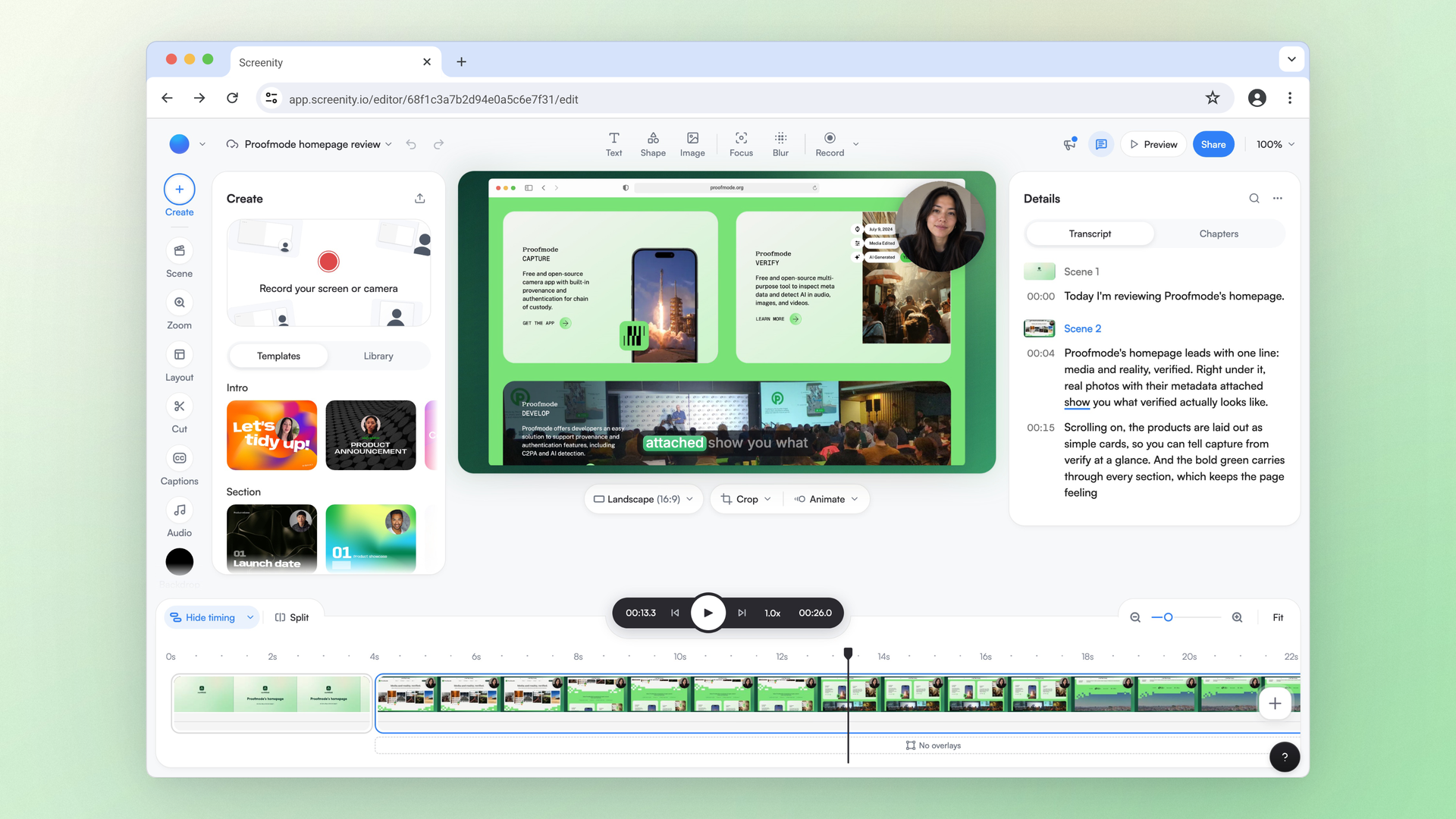
The editor saves changes automatically. Check the save indicator before leaving, especially if you are offline or see a saving warning. Instant recordings open in the viewer rather than this editor.
For a standalone extension recording, download the file and upload it to your account to work on it here. The uploaded project and the extension's local editor do not sync edits.
If playback is slow, open the canvas zoom menu beneath the preview and turn on Low-res preview. This changes the editor preview, not the exported video. Press ? to see available keyboard shortcuts.
To review the viewer page before sending a link, see Preview a video before sharing.
Explore the editor tools
- To change the screen crop, canvas shape or device mockup, see Crop and frame your video and Add a device or browser frame.
- To change the background behind a scene or its playback rate, see Change a scene backdrop and Change scene speed.
- To arrange or animate the screen and camera, see Choose a layout for your camera and screen. To add zooms, see Zoom in on part of your video.
- To add text, shapes or images, see Add text and overlays. For blur and spotlight tools, see Blur and spotlight an area.
- To adjust scene audio or voice enhancement, see Adjust audio and add music. To edit captions, transcripts or chapters, see Edit captions and transcripts and Add chapters to a video. To cut or mute speech by selecting words, see Edit a video with the transcript.
- To trim, split and rearrange scenes, see Trim, split and rearrange scenes. To add scenes, use templates or adjust timing lanes, see Work with scenes and the timeline. To remove a range from within a scene, see Cut a section from a scene.
Last updated October 28, 2026